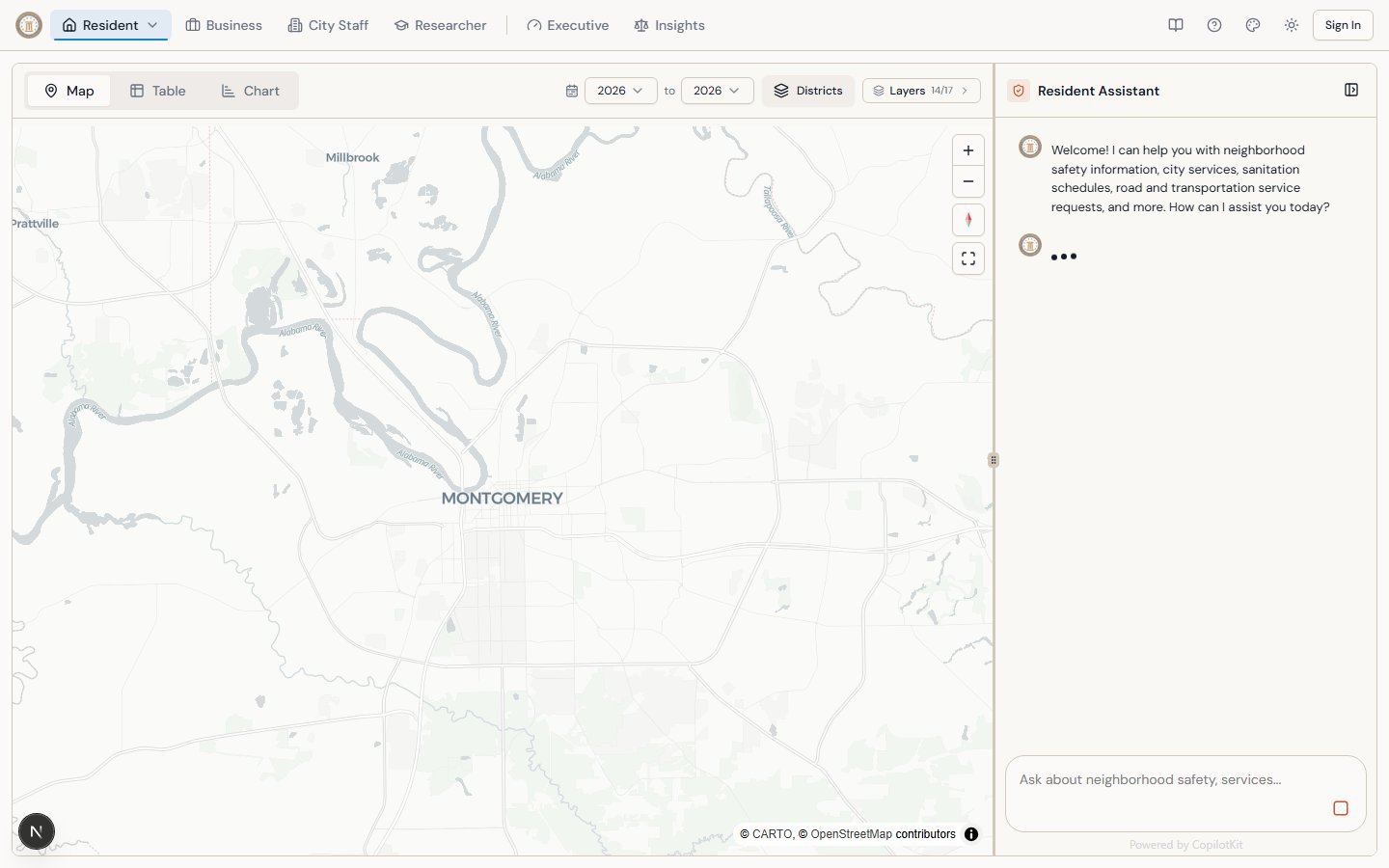
How It Works
Every portal includes an AI chat assistant powered by CopilotKit with an AG-UI agent backed by Anthropic’s Claude. The AI sees the current state of the dashboard (which tab is active, what filters are applied, which data is loaded) and can control UI elements on your behalf.
When you ask a question, the AI:
- Analyzes your question to determine the best data source
- Reads the dashboard state to understand your current context (active tab, filters, selected data)
- Queries Montgomery’s ArcGIS datasets for structured city data (permits, 311 requests, violations, etc.)
- Searches the web via Bright Data for additional context (news, council meetings, city announcements)
- Synthesizes a response with data citations and practical next steps
- Controls the dashboard — switching tabs, toggling layers, navigating sub-pages, or generating reports when relevant
The AI uses real data — not pre-written answers. Every response is generated fresh based on current city datasets.
| Tool | What It Queries | Best For |
|---|
| ArcGIS Query | Montgomery’s 40+ city datasets (permits, violations, 311 requests, boundaries, facilities) | Structured data — counts, locations, status, trends |
| Web Search | Live web results via Bright Data | News, council decisions, how-to guides, current events |
Dashboard Control Actions
The AI can control the dashboard UI on your behalf. These actions happen automatically when relevant:
Core Actions (All Portals)
| Action | What It Does |
|---|
switch_data_tab | Changes between Map, Table, and Chart views |
set_year_range | Adjusts the global year filter |
toggle_map_layer | Shows or hides specific data layers on the map |
select_table_dataset | Changes which dataset the table displays |
move_chat_panel | Repositions chat to left or right side (desktop) |
toggle_chat_panel | Opens or closes the chat panel (mobile) |
toggle_council_districts | Shows or hides the 9-district boundary overlay |
Resident Portal Actions
| Action | What It Does |
|---|
refresh_news_category | Refreshes City Pulse news for a specific category (news, government, safety, events, infrastructure) |
Business Portal Actions
| Action | What It Does |
|---|
filter_land_by_neighborhood | Filters the Vacant Land Explorer to show parcels in a specific neighborhood |
filter_land_by_status | Filters parcels by disposition status (Available, Holding, Use, Leased) |
suggest_land_reuse | Generates AI-powered reuse and development ideas for selected parcels |
City Staff Portal Actions
| Action | What It Does |
|---|
generate_staffing_report | Generates a formatted MPD staffing report with vacancy rates, district service demand, and infrastructure metrics |
Researcher Portal Actions
| Action | What It Does |
|---|
fly_to_civil_rights_landmark | Pans and zooms the map to a specific civil rights landmark with historical context |
Executive Portal Actions
| Action | What It Does |
|---|
generate_briefing | Generates a quick or detailed morning briefing from all city data |
highlight_alert | Scrolls to and highlights a specific priority alert in the queue |
switch_executive_view | Navigates to a specific section of the executive dashboard |
Insights Portal Actions
| Action | What It Does |
|---|
switch_insight_tab | Switches between the 5 tabs (Overview, Equity, Trends, Districts, Stories) |
select_district | Focuses the dashboard on a specific council district |
toggle_metric | Shows or hides a specific metric in the trends view |
generate_data_story | Generates an AI-written narrative story from the current data |
You don’t need to use any of these manually — the AI will activate them when your question warrants it. But you can also control everything yourself using the dashboard tabs and buttons.
Tips for Better Questions
- Be specific about location — “District 5” or “Eastern Blvd” gets more targeted results than “Montgomery”
- Mention time periods — “in 2024” or “this quarter” helps the AI filter data appropriately
- Ask follow-ups — The AI remembers context within your session
- Request formats — Ask for “a table,” “a summary,” or “an executive briefing” to get structured output
- Combine topics — “Cross-reference 311 complaints with code violations in District 3” works
- Ask for dashboard control — “Show me the equity tab” or “Fly to the Rosa Parks Museum” to navigate visually
Portal-Specific Behavior
Each portal’s AI has a different personality and focus:
| Portal | AI Style | Typical Response Length |
|---|
| Resident | Friendly, plain language, practical next steps | 2-3 sentences |
| Business | Professional, data-forward, opportunity-minded | 3-5 sentences with metrics |
| City Staff | Analytical, report-oriented, executive-ready | Structured with data points |
| Researcher | Thorough, methodological, interdisciplinary | Detailed with caveats |
| Executive | Concise, headline-first, action-oriented | Briefing format with KPIs |
| Insights | Analytical, narrative-driven, equity-aware | Data stories with district context |
Limitations
- Not official advice — AI responses are informational, not legal or official government decisions
- Data freshness — ArcGIS data reflects the most recent city upload (usually same-day for active datasets)
- No personal data — The AI cannot access private records or account information
- Session-based — Chat history is maintained during your session but may not persist across visits